


Payment Details Capture
Phase four of the end-to-end pre-defined bundle purchase is to capture the user's payment details.
Description
The user is now at the stage of the journey where they must enter their payment details. When designing the payment details page the priority is security. Regardless of who is hosting the payment details page, a penetration test must be completed on the page to ensure there are no vulnerabilities. A few tips can be found in the 'tips and tricks' section of this page.
eSuite supports a wide range of payment methods but only three require you to add the payment details in specific API calls before the final purchase call is made. These are:
- Credit Card
- SEPA
- BACS
This is because these details are stored within eSuite and the wallets must exist before proceeding to payment. For the likes of PayPal, MobilePay etc., the payment method can be passed in on the final call handled accordingly.
The diagram and information below shows the Client-Side implementation of how to return and capture credit card information.
Pre-requisites
- At least one pre-defined bundle configured within eSuiteHQ. Please visit our Create a Bundle documentation for information on how you can achieve this.
- An Account Reference.
Workflows
Retrieve Users Details
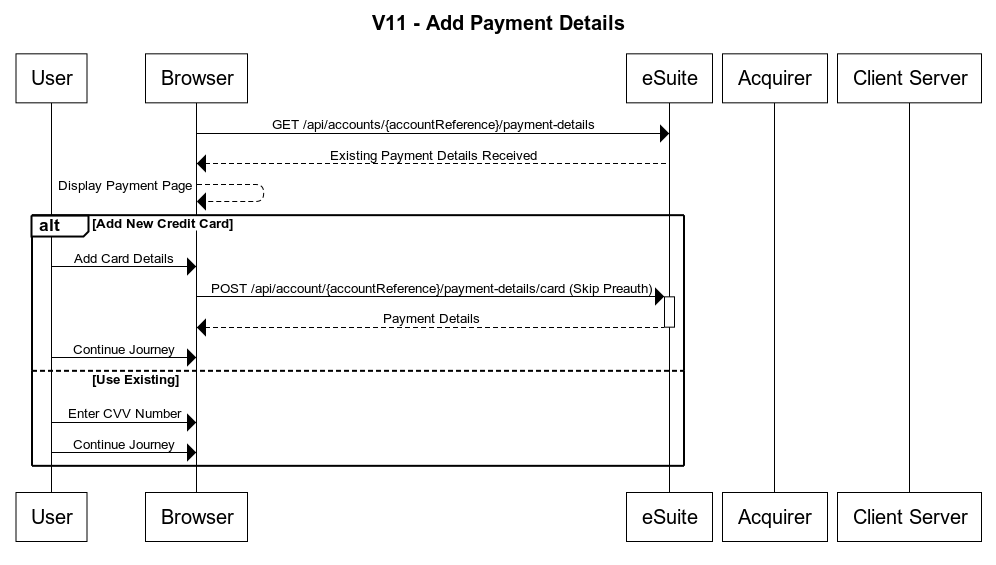
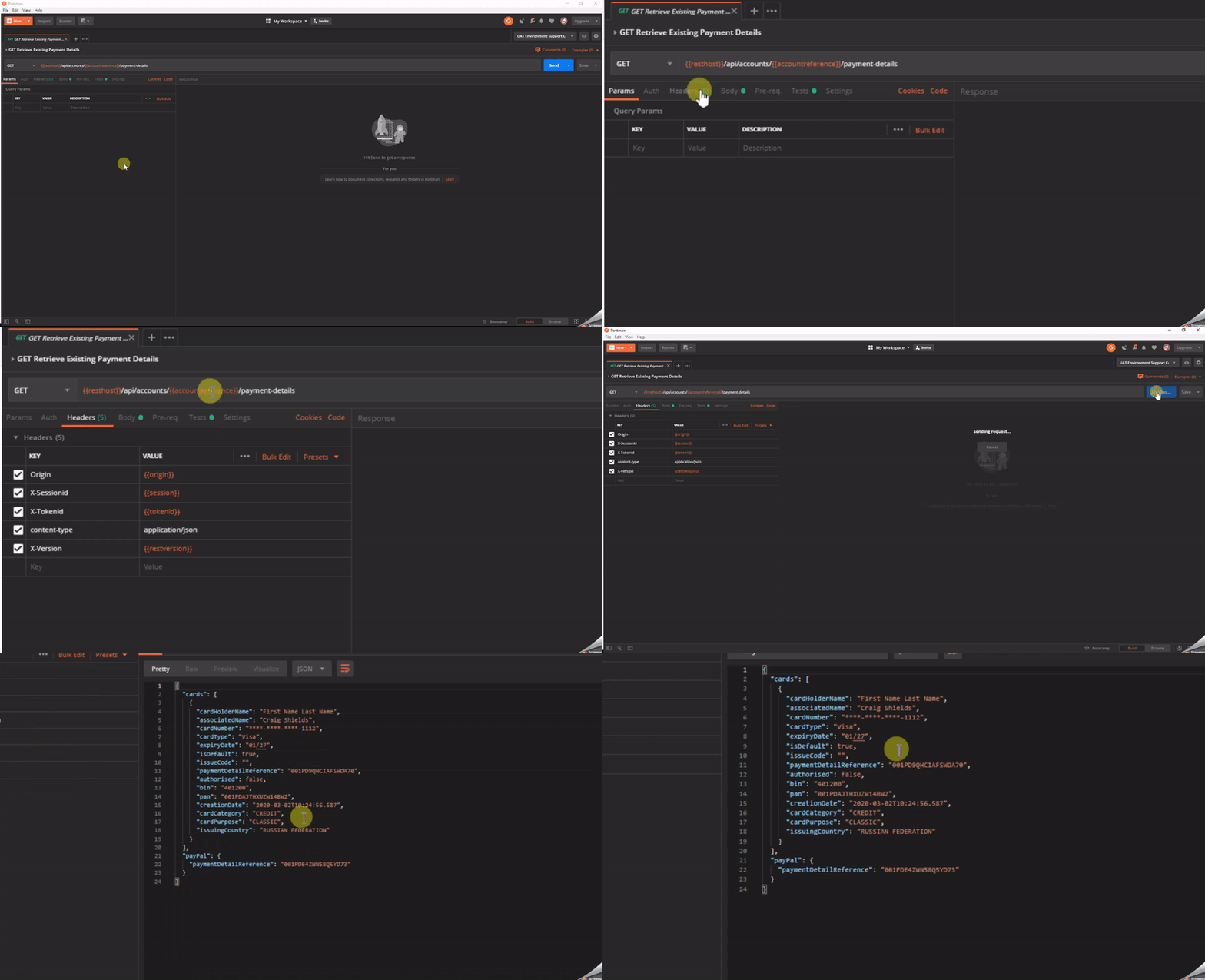
Before the payment page is displayed, you will need to retrieve the users existing payment details using the REST API. The Postman collection includes an example of this API.
GET Retrieve Payment Details
These can then be display on the payment page as existing details.
Add New Credit Card
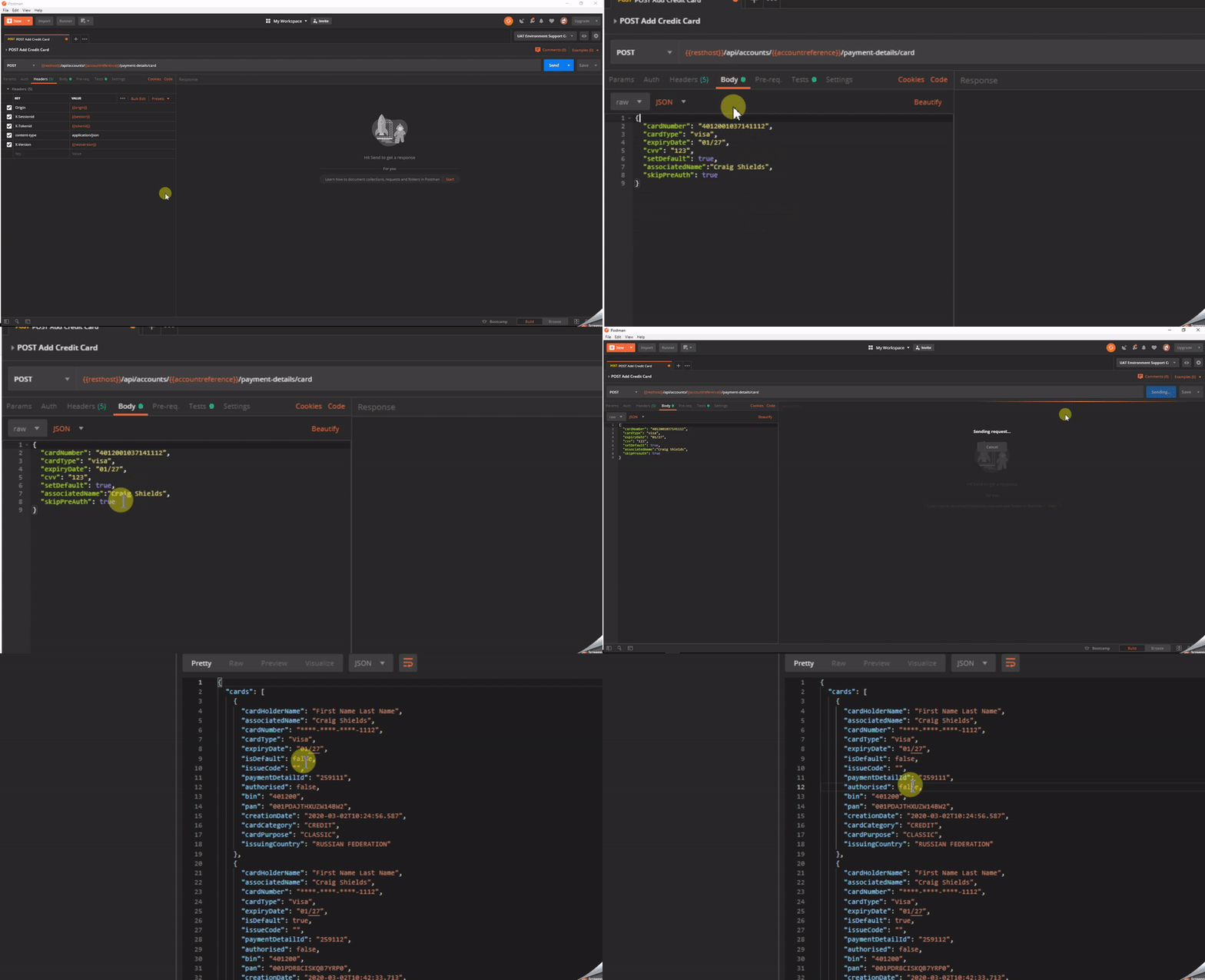
If the user decides to add a new credit card this must be done via the Add Credit Card API. An example of this is shown below
POST Add Credit Card
From the request body, you will see the parameter 'skipPreAuth'. The skipPreAuth flag indicates to the platform whether a pre-auth on the card is required. As part of a standard purchase journey, the skipPreAuth should be set to true, this is because the entire auth should be complete at the point of purchase and not when the card is added. You can see from the above response that the card is classed as not authorised. This is because the details have only been stored at MPP Global at this point and no auth completed.
If the skipPreAuth flag is set to false during a purchase journey, the user could be prompted twice by a £Ds challenge. The skipPreAuth should only be set to false when the user is adding the card as part of the self-care journey. Although this documentation will not show how to handle 3D Secure, you can find detailed information on a 3DS purchase journey here
It is also important at this point that you keep the CVV in session storage for use in the next call. Please be aware that this value can only be stored for the duration of the session and should be removed once complete. Another thing to note is that this API must be performed client-side. The API cannot be called via your server unless you are PCI-DSS Level 1 compliant.
Use Existing Details
If the user decides to use their existing details that were retrieved previously, you should prompt them to input their CVV number again and store this much like the above. No API call is required as the CVV number will be passed into the complete purchase API in the next phase.
Authentication
As these are a client-side API being called then client-side authentication is used for the API. API authentication method details can be found here: https://supportstaging.mppglobal.com/technical/esuite-rest-api-support/authenticating/eSuite Authentication Prerequisite
To enable the client side applications to call the eSuite Client Side API's you will need to provide MPP Global with the following:- A list of Origins
- Token ID
API Documentation
Details on the APIs used in the above are detailed below:
Retrieve Payment Details
This endpoint will provide the ability to retrieve saved payment details that are stored within the eSuite platform.
Only PayPal, Credit/Debit cards and DirectDebit supported
An example is shown below:
GET https://{restHost}/api/accounts/{accountReference}/payment-details
Further information on this API can be found here.
Add Credit Card
This endpoint will provide the ability to add a new payment card (credit or debit) onto the eSuite platform
This endpoint supports 3D Secure V2.
An example is shown below:
POST https://{restHost}/api/accounts/{accountReference}/payment-details/card
Further information on this API can be found here.
Tips & Tricks
- If you would like to automatically recognise a card type and its origin, you can use the MPP Global BIN Lookup API documented here
- Remember if you are using the Add Credit Card API as part of a self-care function, you must set the skipPreAuth flag to 'false'.
- The above covered only the Add Credit Card API, however our Support Centre provides a wealth of information on the different payment methods available here
- When creating your own Payment Page the primary objective is security. Below are a few useful tips when creating a payment page
- Where possible, host the page yourself. This does mean you will need to complete an section A-EP of the SAQ, however it does reduce the risk of security breaches when not having to create an iframe or navigate away from the website. For more information relating to SAQ, visit here
- Avoid being exposed to man-in-the-middle attacks by using TLS 1.2
- Avoid pulling Javascript and other files from external sources. If any of these files are compromised, dangerous code could be executed on the page.
- Always keep up to date with the latest security standards. Please find below some useful resources
Next Steps
The next phase in the end to end journey is to confirm and complete the payment. Continue your journey here.
Support
If you require any assistance with the above, please raise a ticket via the MPP Global Help Desk or email support@mppglobal.com