


Sign in with Apple
Sign in with Apple is a fast, easy, and private way to sign into apps and websites using the Apple ID.
Introduction
Sign in with Apple is a Single Sign-on provider, developed and operated by Apple, that enables subscribers to create accounts and/or authenticate with third-party services on both web and in-app, using their Apple ID account. By using Sign in with Apple, the service provider agrees to adhere to the September 2019 App Store Review Guidelines.
Key Functions & Use Cases
- Create accounts for a service using Apple ID
- Authenticate to a service using Apple ID, where an Account already exists
- Link an active account to Apple ID so subscribers can authenticate using Sign in with Apple in the future
- Create accounts and/or authenticate using Apple ID on both Web and In App
- Create accounts and/or Authenticate using Apple ID via Apple Device support capabilities such as Face ID, Touch ID & PIN ID on iOS, iPadOS and macOS
- Create accounts using a minimal amount of Personal Data – Email Address, First Name & Last Name
- Ability for subscribers to edit the First Name and Last Name upon account creation
- Ability to hide verified Email Address associated to their Apple ID when creating an Account, and choose to use a disposable Email Address
- Subscribers can suppress (and reverse) all email communications with the service
- Reverse the decision to display Apple verified Email Address after previously using 'Hide my Email'
- Ability to identify subscribers who create an Account and choose to use 'Hide my Email'
- Customisable email templates for account creation and Hide my Email capability
Using Sign in with Apple
Apple Device
For a subscriber to use Sign in with Apple where they are accessing the website or In-App on their Apple device, the customer needs to ensure:
- They are using an Apple Device that is compatible and has the latest software
- They have an Apple ID that uses two-factor authentication
- They are signed into their iCloud Account on their Apple Device with the Apple ID they wish to use
Where the above pre-requisites are met, a subscriber will interact with Sign in with Apple as follows:
- The subscriber will tap the verified ‘Sign in with Apple’ button on the participating Website or In-App

- After tapping the Sign in with Apple button and the client has required further account information, the subscriber will be prompted to create an Account using their Apple ID
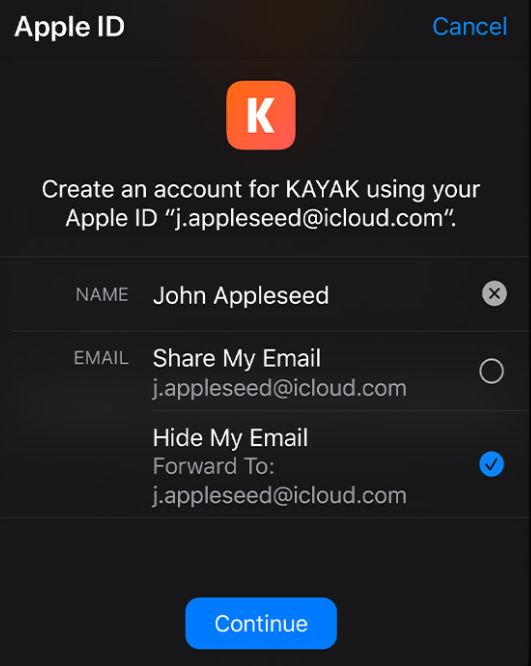
- Sign in with Apple automatically completes the information from the Apple ID, but they can edit their name and should they wish to, decide to share or hide their email address (please note, Hide my Email is currently not supported by eSuite - please see the limitation below).
- Where a subscriber is accessing using Safari on a Mac or any WebKit browser on iOS or iPadOS, a sheet drops down from the navigation bar
- [NOT SUPPORTED - This would not create an Account in eSuite] If the website or app (at the client's discretion) has not requested any information to set up the account, the customer is required to check that their Apple ID is correct and proceed (please see the limitation below)
- When the create account flow via Sign in with Apple is complete, subscribers are required to authenticate via Face ID, Touch ID, or device passcode to sign in
Other Platforms
For a customer to use Sign in with Apple via website or application on a non-Apple device or platform such as Android or Windows, the customer will interact with Sign in with Apple as follows:
- The subscriber will tap the verified ‘Sign in with Apple’ button on the participating Website or In-App
- The subscriber will be directed to a secure, Apple-hosted webpage, and requested to enter their Apple ID and password
- The first time the subscriber signs in, they will be prompted for a verification code from their trusted Apple Device or phone number.
- Should a customer wish, on the web they can skip this step for 30 days after their initial sign in by choosing to trust the browser they are currently using
- If the client has required further account information, the subscriber will be prompted to create an Account using their Apple ID, where they can edit their name and should they wish to, decide to share or hide their email address (Hide my Email is not currently supported - see limitation below)
- [NOT SUPPORTED - This would not create an Account in eSuite] If the website or app (at the client's discretion) has not requested any information to set up the account, the customer is required to check that their Apple ID is correct and proceed (please see the limitation below)
- When the create account flow via Sign in with Apple is complete, subscribers are required to authenticate by signing in
Linking an Existing Account to Apple ID
For a subscriber who already has an account with a service and would like to link their account to their Apple ID so that when authenticating they can use Sign in with Apple, the customer can achieve this by following the add account to Apple ID linking process typically within the service self-care portal using the eSuite API.
If the customer tries to link their account when there is already a link between their account and their Apple ID, validation will occur on the API, and a decision can be made to not present the Sign in with Apple button to the subscriber.
Hide my Email
Hide my Email is a privacy-based feature offered by Apple to enable customers to share a unique random email address with a service provider, as opposed to their verified Apple ID details.
This address is unique to the subscriber and follows this format: <unique-alphanumeric-string>@privaterelay.appleid.com. Any messages sent to this address by the app or website are automatically forwarded to the verified email address via Apple's private email relay service.
Please note that there is a current restriction on 'Hide my Email', which is not currently fully supported by eSuite. Details can be seen in the restrictions section below.
The recommendation for service providers is to take care to highlight the issues with using Hide my Email and try to encourage subscribers down the path of sharing their details at the point of account creation. If the subscriber does opt to use Hide my Email, there will be additional complexity for the service provider to handle the email communications to that private email relay domain, as eSuite does not currently support email communications to these domains.
Hide my Email | Subscriber Activation
When a subscriber creates an account using Sign in with Apple, an option becomes available to either share a verified email address associated to the Apple ID (RECOMMENDED) or choose to hide their email address and instead, use a disposable email address created and handled by Apple’s Private Email Relay Service. In both scenarios, an account within eSuite will be created. This would be specific to the service to which they are registering and would route all email communications to their verified email address accordingly.
An additional issue that can be encountered by the service provider where a subscriber has opted to use ‘Hide my Email’, is that the subscriber has the option at any point to stop using Hide my Email – essentially stopping the ability for the disposable email address to be used to send communications to the customer by the service provider. When this occurs, email communication sent to the customer will bounce in the same way they would if the user’s email account had been shut down. The subscriber can contact the service provider and provide a verified email address so the account against the Service is updated, and email communication sent is once again received. However, for the service provider, communications with the customer can be impacted significantly if an email address is not made available that ensures the successful submission and receipt of email communications.
Hide my Email | Service Provider Management
When a subscriber has created an account using the ‘Hide my Email’ service, it is possible to detect that the customer has decided to keep their email hidden and prompt an email template to be sent to the customer externally.
All subscribers using the 'Hide my Email' service can be reported against within eSuite by filtering to include all accounts by the email domain 'privaterelay.appleid.com'.
The ‘Hide my Email’ template will inform the customer that it has identified that ‘Hide my Email' is active and explain the potential complications with not providing a verified email address should a decision be made in the future to stop using Hide my Email. The template can found in eSuite HQ / Email Communications and is named 'AccountConfirmation_HiddenEmail'. You can view the html template here.
Configuring Sign in with Apple
For MPP Global to configure Sign in with Apple on your eSuite instance, the following information is required:
- App ID Prefix / Team ID
- Service ID
- Private Key file & Key ID
You can obtain the above information as follows:
App ID Prefix / Team ID
Note: For information on this step directly from Apple, see https://help.apple.com/developer-account/?lang=en#/dev04f3e1cfc
- Navigate to https://developer.apple.com/account/resources/identifiers/list/bundleId and create an App ID if one does not already exist, or select the existing App ID if one already exists that is being used for Sign in with Apple.
- Within the App ID configuration make sure the Sign in with Apple capability is enabled.
- Then, make note of the following information found at the top: App ID Prefix / Team ID (referred to from here on-wards as the Team ID)
Service ID
Note: For information on this step directly from Apple, see https://help.apple.com/developer-account/?lang=en#/dev1c0e25352
A Service ID is required. If one has not already been set up for Sign in with Apple, then the below steps can be followed:
- Head to https://developer.apple.com/account/resources/identifiers/list/serviceId
- Click the Add button in the upper-left corner
- Select Services ID and click Continue
- Enter the Services ID description and provide a unique identifier
- Register the Services ID and select it from the list to start configuration
- Select Sign in with Apple and click Configure
- In the modal that appears, select your app from the list of primary App IDs that is related to your website
- Under Website URLs, provide your domains, subdomains, or return URLs as a comma-delimited list. You must provide at least onedomain or subdomain.
- Click Done to store your configuration and click Continue
- Review the configuration and click Save
Once the Service ID has been configured, select it from the list and make a note of the Identifier (referred to from here on-wards as the Service ID).
Private Key file & Key ID
Note: For information on this step directly from Apple, see https://help.apple.com/developer-account/?lang=en#/dev77c875b7e
MPP Global requires a Private Key. If one has not already been created for Sign in with Apple then the following steps can be followed:
- Head to https://developer.apple.com/account/resources/authkeys/list
- Click the Add button in the upper-left corner
- Enter a Key Name
- Enable Sign in with Apple
- Click Configure on Sign in with Apple
- Select the primary App ID as set up above
- Click Save and then Continue
- Review the configuration and click Register
- Click Download to get the Private Key file
- Click Done
Once you have created the Key and downloaded the Private Key file, click on the newly created Key within the list. Within the Key details, make note of the Key ID.
You should now have the following information:
- Private Key file (with a .p8 file extension)
- Key ID
Setup Checklist
In order to enable Sign in with Apple on your eSuite instance, the following two steps must be completed:
- Follow the Configuration guidance to obtain the following information:
- Team ID
- Service ID
- Private Key file
- Key ID
- Contact your Account Manager to request Implementation Support to configure Sign in with Apple within eSuite system configuration.
Current Restrictions
- Hide my Email
- Hide my Email communications are not currently supported. This includes all engagement with a customer who activates Hide my Email.
- It is recommended that strong messaging be placed alongside the Sign in with Apple button to inform the customer of the complications with using Hide my Email.
- First Name and Last Name
- eSuite is unable to retrieve the customer first name or last name during the Sign in with Apple process. This information is only ever presented to the Service provider ONCE and this needs to be held in session data and presented to eSuite at the point the account is created.
- Failure for the service provide to hold and transmit the first name and last name to eSuite at the required time during the account creation process will result in an account being created with no name.
Next Steps
- View the Sign in with Apple integration guide