


Complete Pre-Defined Cart Purchase
Phase five of the end-to-end pre-defined bundle purchase is the final step and is where the purchase will be complete.
Description
The user is now at the final step of the journey, the Summary page. Once the user has reviewed their purchase and decided to proceed, you must complete the purchase with the AddSubscription API.
The diagram and information below shows the Client-Side implementation of how to complete the purchase.
Pre-requisites
- At least one pre-defined bundle configured within eSuite HQ. Please visit our Create a Bundle documentation for information on how you can achieve this.
- A Cart Reference
- An Account Reference
- A Delivery Information Identifier
- A Credit Card wallet
Workflows
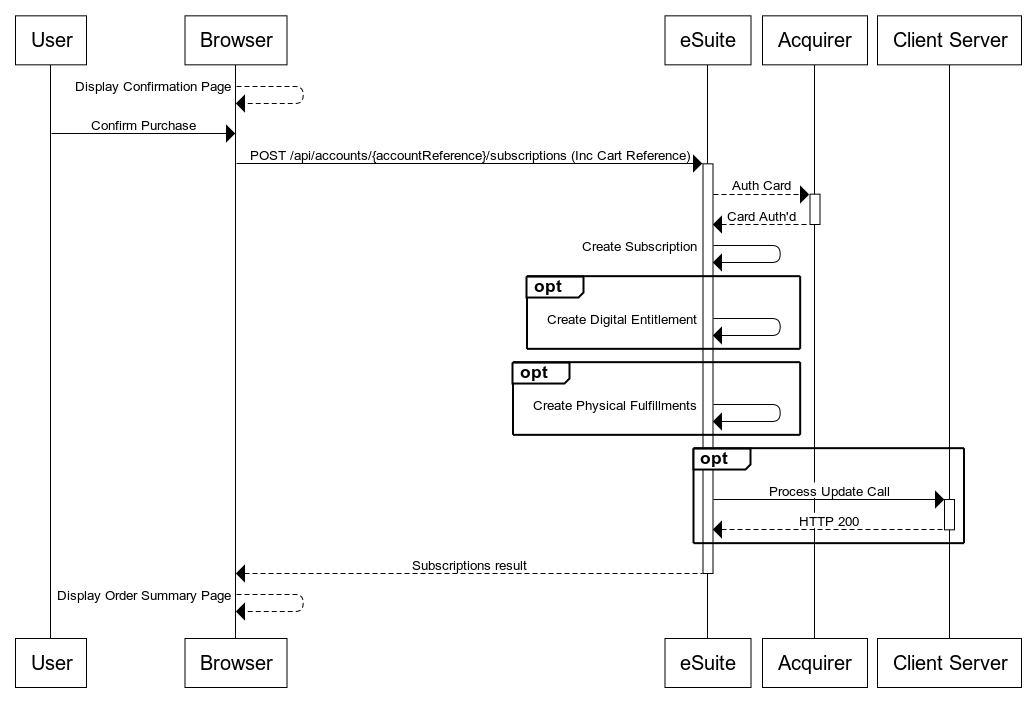
The following example shows how to complete a purchase using a credit card. 3DS is disabled at this point and will not be shown in the example, however our Support Centre page here provides all of the information required implement 3DS v1.
Throughout each of the phases in this journey information has been collected. This information is now going to be used to complete the purchase. This information is:
- Phase 1 - User's selected Cart Reference
- Phase 2 - Account Reference and Session Token
- Phase 3 - Delivery Information Identifier (Only mandatory if a Physical product was part of the cart)
- Phase 4 - Credit Card CVV Number
This can be seen in the below:
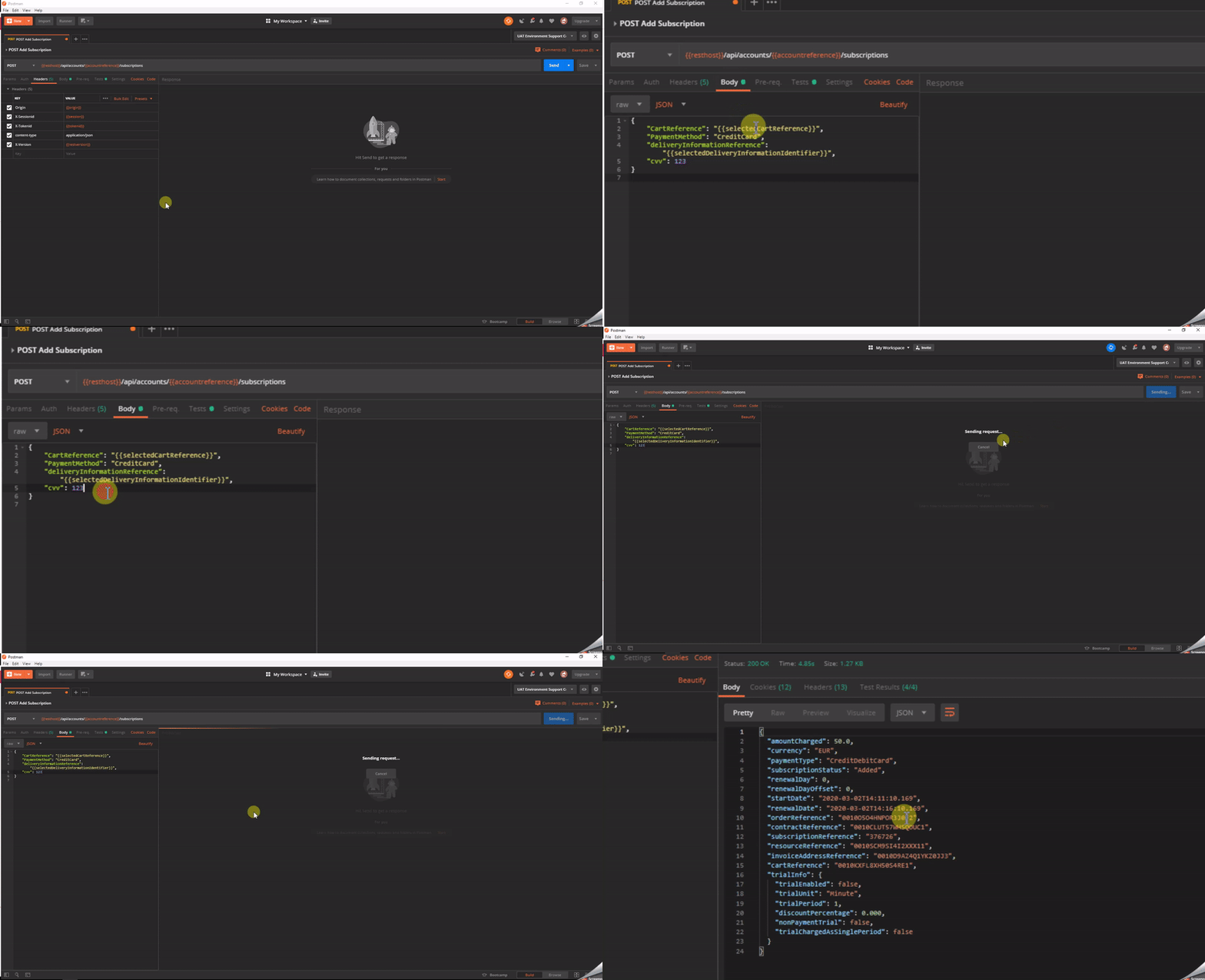
POST AddSubscription
Based on this response, the subscription has been successfully created and the user can start enjoying your content. Please note that this example only covered Credit Card purchases, there are multiple payment methods that MPP Global can offer that require the user be redirected to third party sites like PayPal, MobilePay etc. For in-depth details on these or any specific use cases you have, please contact our Support Team or your Project Team at support@mppglobal.com
Authentication
As these are a client-side API being called then client-side authentication is used for the API. API authentication method details can be found here: https://supportstaging.mppglobal.com/technical/esuite-rest-api-support/authenticating/eSuite Authentication Prerequisite
To enable the client side applications to call the eSuite Client Side API's you will need to provide MPP Global with the following:- A list of Origins
- Token ID
API Documentation
Details on the APIs used in the above are detailed below.
Initiate Subscription Purchase
This endpoint will provide the ability to initiate the purchase of a subscription.
In the event the account is paying using a synchronous payment method (such as credit card) and 3D Secure is disabled, the purchase will complete instantly. If the account selects an async payment (PayPal, P24, etc.) a redirect URL will be provided in the return to the request.
An example is shown below:
POST https://{restHost}/api/accounts/{accountReference}/subscriptions
Further information on this API can be found here.
Tips & Tricks
- This journey example split the payment page and confirmation page into two different steps, which means two separate clicks for the user. To reduce the number of clicks, you could add the confirmation step to the payment page and call the APIs in series once the user has entered their payment details. Reduced clicks, reduced drop off.
- MPP Global offer a number of client notifications via HTTP POST. One of these notifications is the 'Purchase Update'. If you would like to notify a system each time a purchase is made, view the documentation here.
Next Steps
The next phase in the end to end journey is to confirm and complete the payment. Continue your journey here.
Support
If you require any assistance with the above, please raise a ticket via the MPP Global Help Desk or email support@mppglobal.com