

Subscription Churn Timeline Report
The Subscription Churn Timeline Report can be found in the Detailed Reports section when adding a new report from the Report section of eSuite HQ. Below is the specification of the report.
| Column Name | Type | Precision | Length | Nullable | Description |
|---|---|---|---|---|---|
| AccountID | INT | NA | NA | No | MPP Global Customer Account ID |
| UKI | NVARCHAR | NA | 0-255 characters | No | Customer Email Address |
| ClientUserId | NVARCHAR | NA | 0-50 characters | No | ClientUserId of the customer |
| SubscriptionId | INT | NA | NA | No | The MPP Global Subscription ID |
| ServiceId | INT | NA | NA | No | The ServiceId of the Subscription Service |
| ServiceTitle | NVARCHAR | NA | 0-50 characters | No | The Service Title of the Subscription Service |
| OriginalSubscriptionDate | DATETIME | Up to nearest 1 minute | NA | No | The date and time when the customer originally subscribed to the service |
| ChurnDateTime | DATETIME | Up to nearest 1 minute | NA | No | The date and time when the customer churned from the service |
| ChurnType | VARCHAR | NA | 0-255 characters | No |
Type of churn - Voluntary or Involuntary. For Voluntary Churn:
Involuntary Churn
|
| ResubscriptionDate | DATETIME | Up to nearest 1 minute | NA | Yes | Should a customer have signed back up to the SAME Service after churning, the date and time they signed back up after the previous churn will be displayed here. |
| ResubscribeNotes | NVARCHAR | NA | 0-255 characters | Yes |
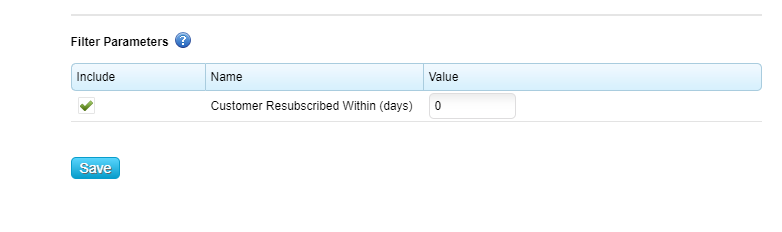
Displays whether a customer resubscribed within/after x days, where x is a parameter filter that can be set when creating the report. Resubscription date must be populated for this column to populate. The image below shows where the filter paramater can be set.
|